
RedShelf Digital Courseware Guide
Last Updated: 1 September 2026
Sapience Consulting partners with RedShelf, a global leader in educational technology distribution, to deliver secure, dynamic, and eco-friendly digital manuals for our training courses. This guide shows you exactly how to redeem your unique 16-digit alphanumeric access code and access your workspace.
01 Access Code Redemption Roadmap
Redeeming your learning materials on the RedShelf portal takes less than two minutes. Follow this step-by-step sequence:
Sign In or Create an Account
Navigate directly to the RedShelf website. Sign in using your existing credentials. If you are new to the platform, click the **"Log In"** button in the top-right corner to register a new account (as highlighted in the interface layout below). If you forget your password, use the password reset utility.

Navigate to "My Shelf"
Once logged into your account, click on your name profile link in the top-right corner of the website navigation bar, and select "My Shelf" from the dropdown menu.
Input and Redeem Code
Copy and paste your unique 16-digit alphanumeric RedShelf Access Code (e.g. ABCD1234EFGH5678) into the designated text box labeled "Redeem Code" located at the top of your shelf area, then click the blue arrow action button on the right.
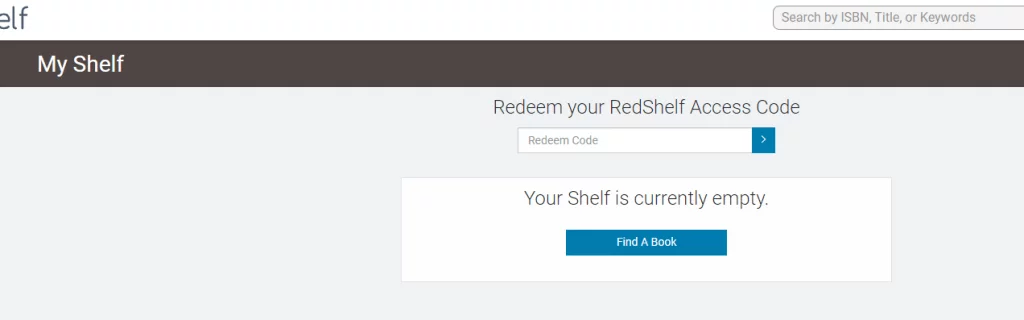
Verify Your Book Allocation
Voila! Your textbook or training manual (such as The Design of Everyday Things) will instantly appear unlocked inside your shelf area below the redemption bar.
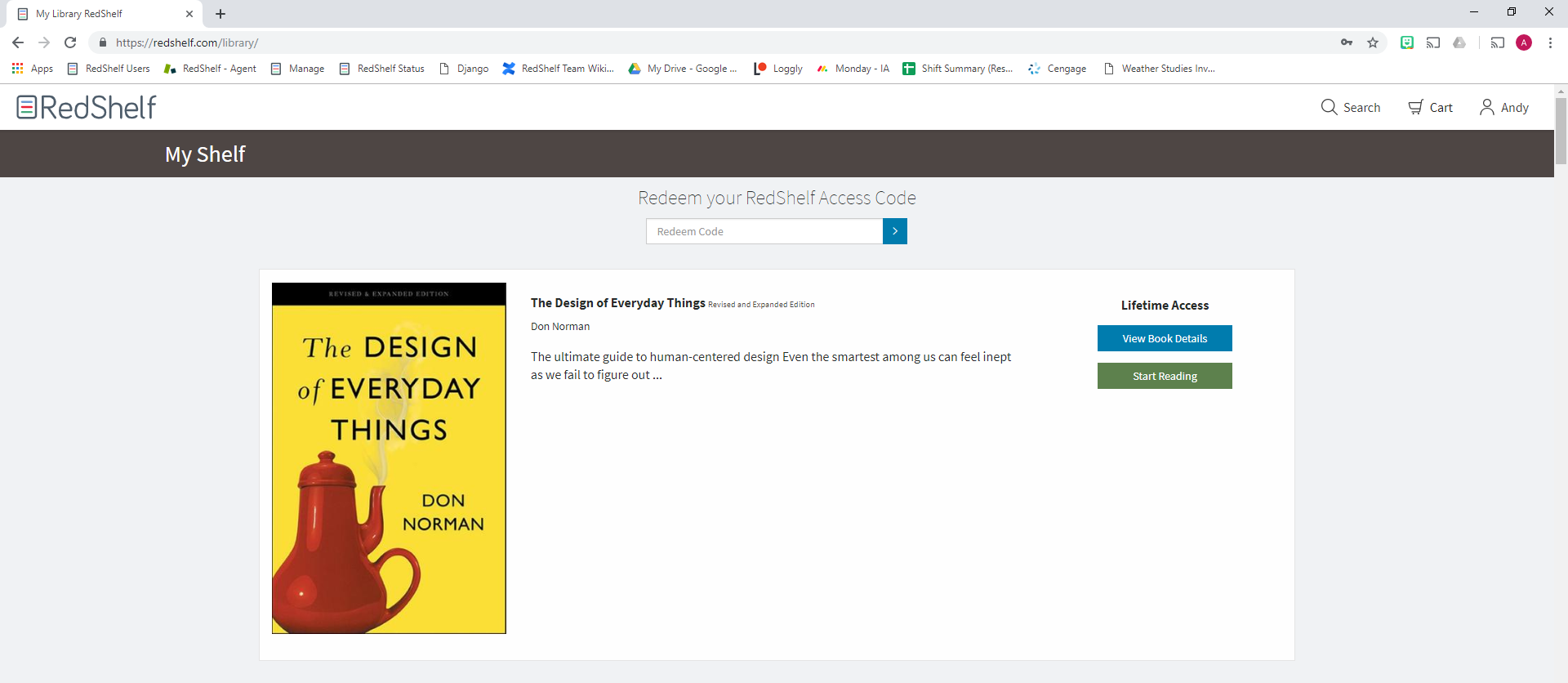
Open and Start Reading
To launch your interactive workspace, click on the green "Start Reading" button located to the right of your courseware product description card.
02 Interactive Video Tutorial Hub
Learn how to optimize your reading workspace, configure offline studying, and export your personal markers by exploring our video resource library:
1. Reading Offline
Learn how to cache pages securely on your device browser storage to study without active internet.
Watch Tutorial2. Highlighting & Notes
Discover how to drag over text blocks to highlight, annotate terms, and organize your syllabus bookmarks.
Watch Tutorial3. Printing Your Notes
Learn how to compile, format, and print your personal highlights sidebar for exam preparation.
Watch Tutorial